A guide to your new takeoff experience
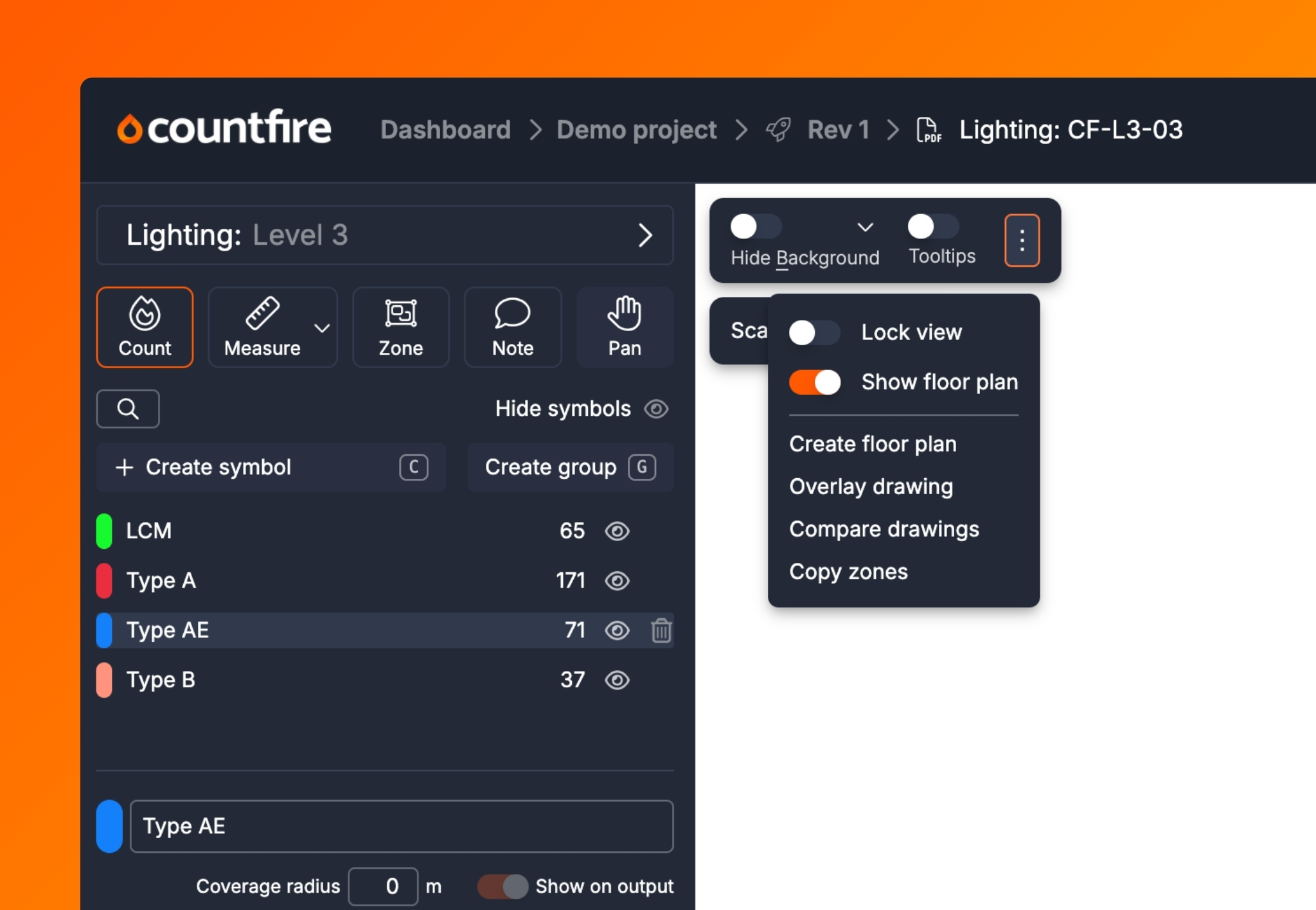
Our recent update brings you a faster, more intuitive Countfire experience. This guide will help existing users navigate the new interface, allowing you to work faster and more accurately than ever before.
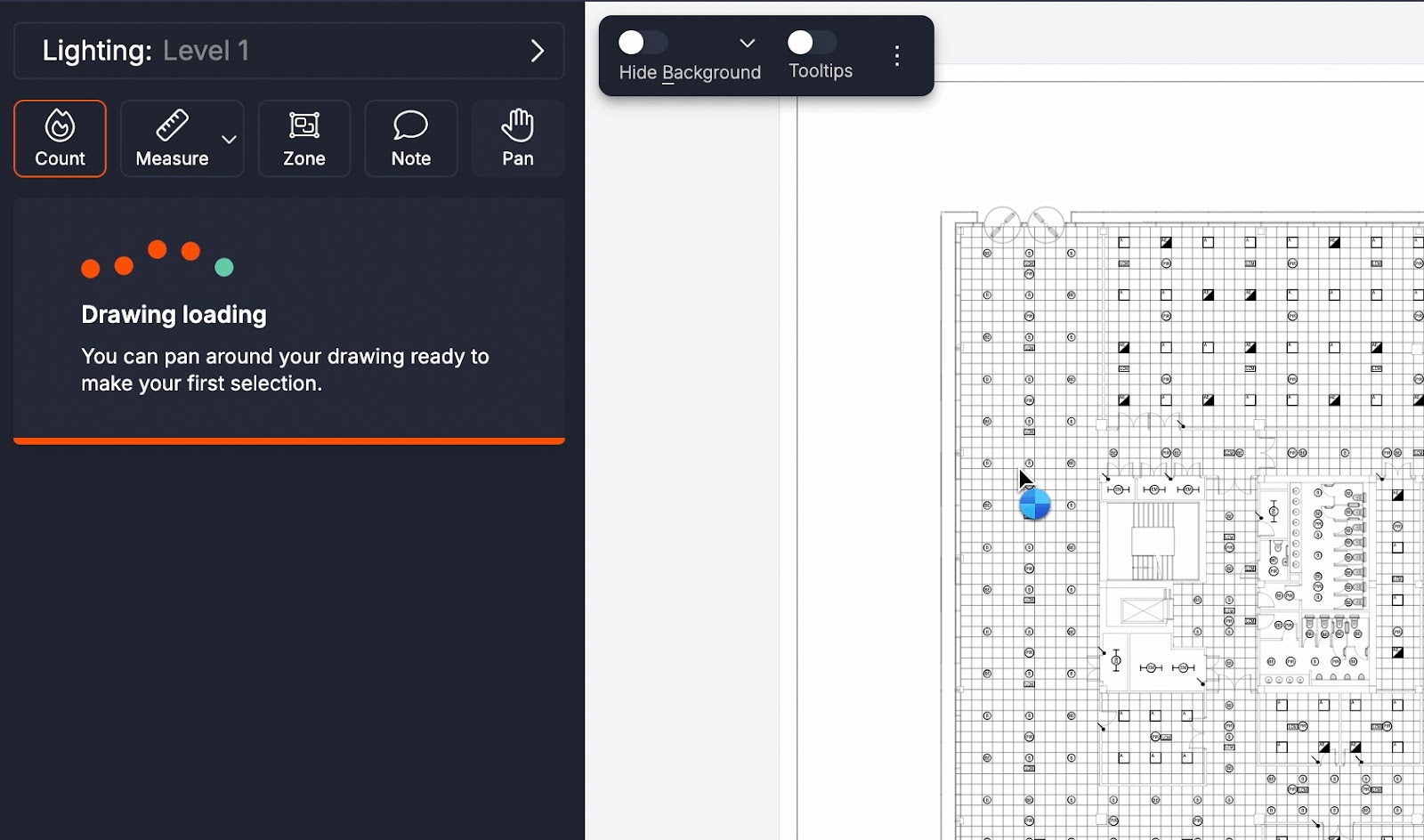
Drawing loading notifications
- A clear drawing loading notification now appears in the sidebar rather than at the bottom of the screen
- The loading spinner cursor indicates you cannot make a selection on the drawing (you can still pan and zoom on the drawing as it loads)
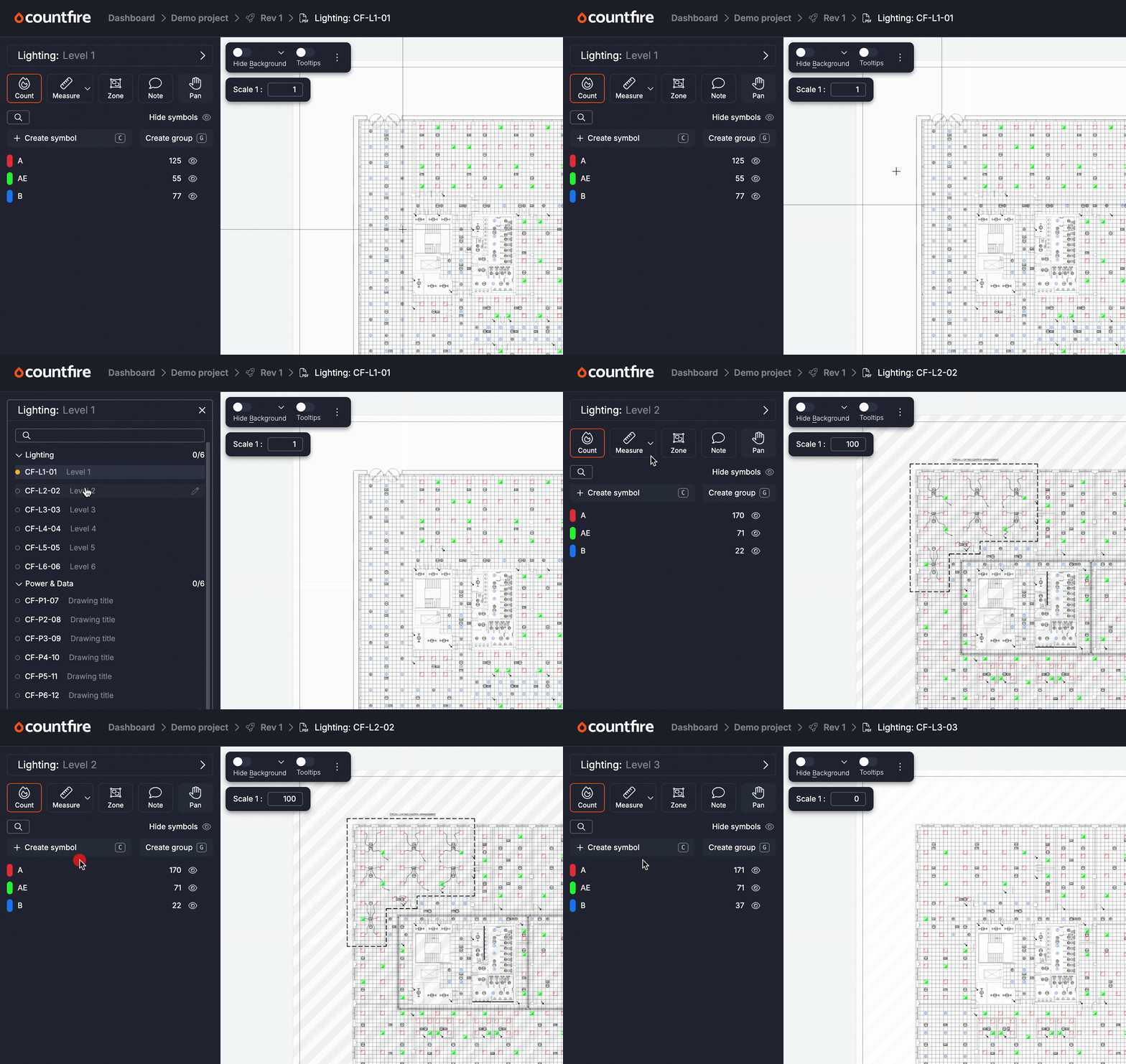
The “Choose” tab has gone
- Rather than starting in “Choose”, you will now land directly in the “Count” tool ready to start making selections
- An always accessible drawing chooser will allow you to quickly switch between drawings from your current tool
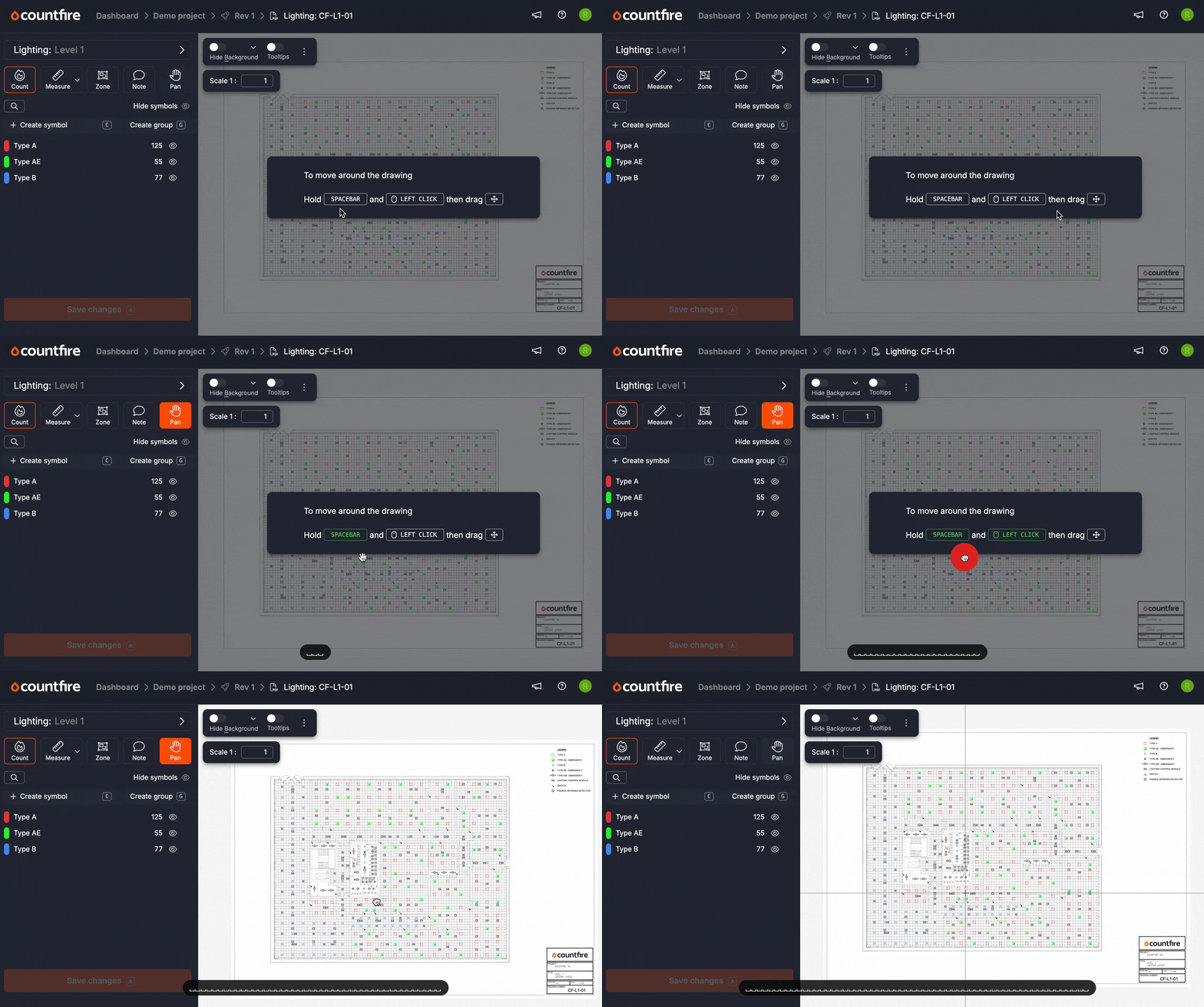
Hold spacebar to pan
- No more clicking into “Select” mode as, by default, you will be in the right mode to create selections, measures, zones or notes
- Simply hold spacebar to pan around your drawing instead
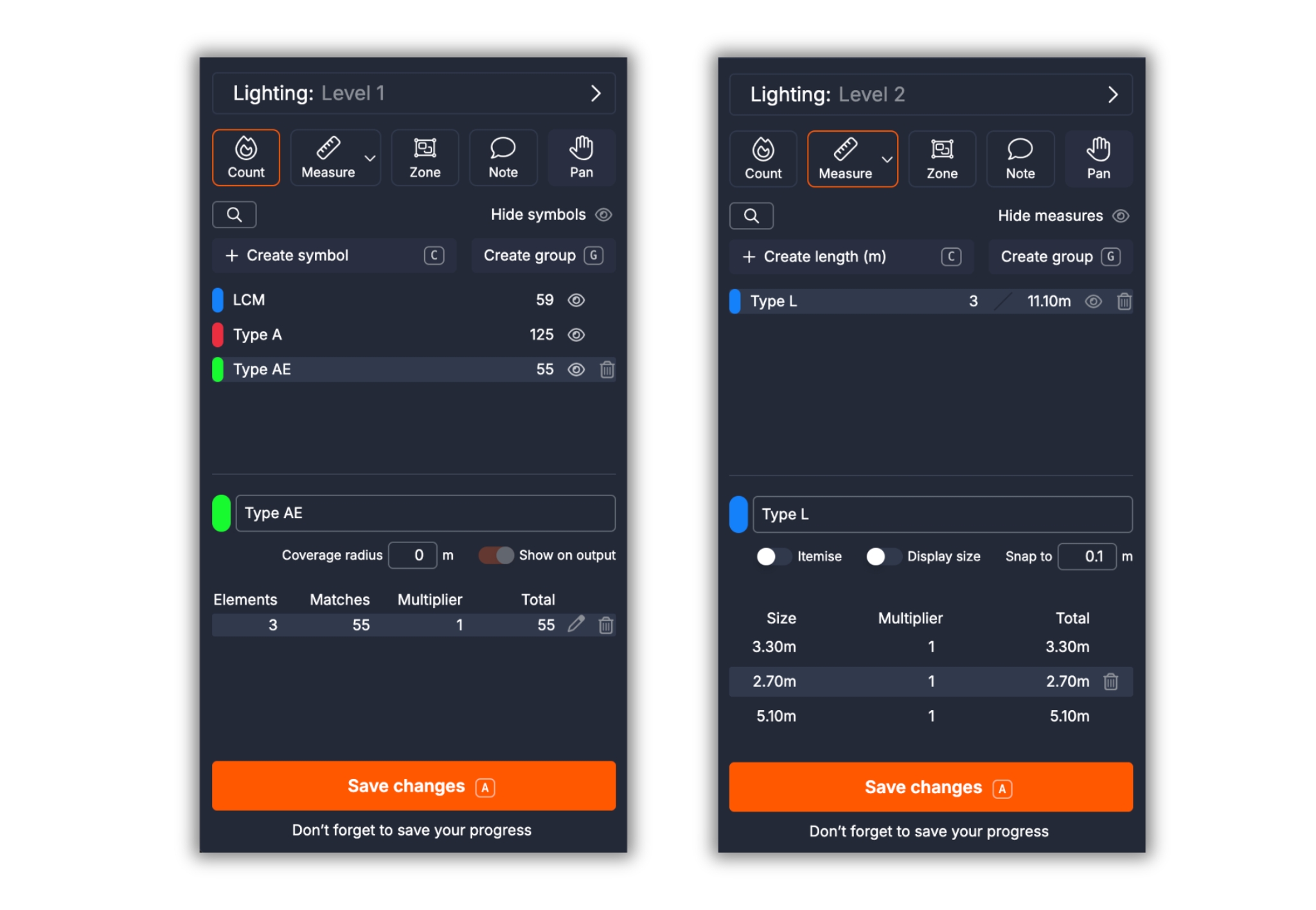
Clearer sidebar labelling
- “Hide symbols” or “Hide measures” replaces “Toggle all” (plus you can use the icons next to each selection or measure to hide them individually)
- “+ Create symbol” has replaced “Create” and a clear “Create group” button has been added
- The word “Edit” next to selections has been replaced by an intuitive icon
- A larger “Save” button means it is more obvious when there are unsaved changes
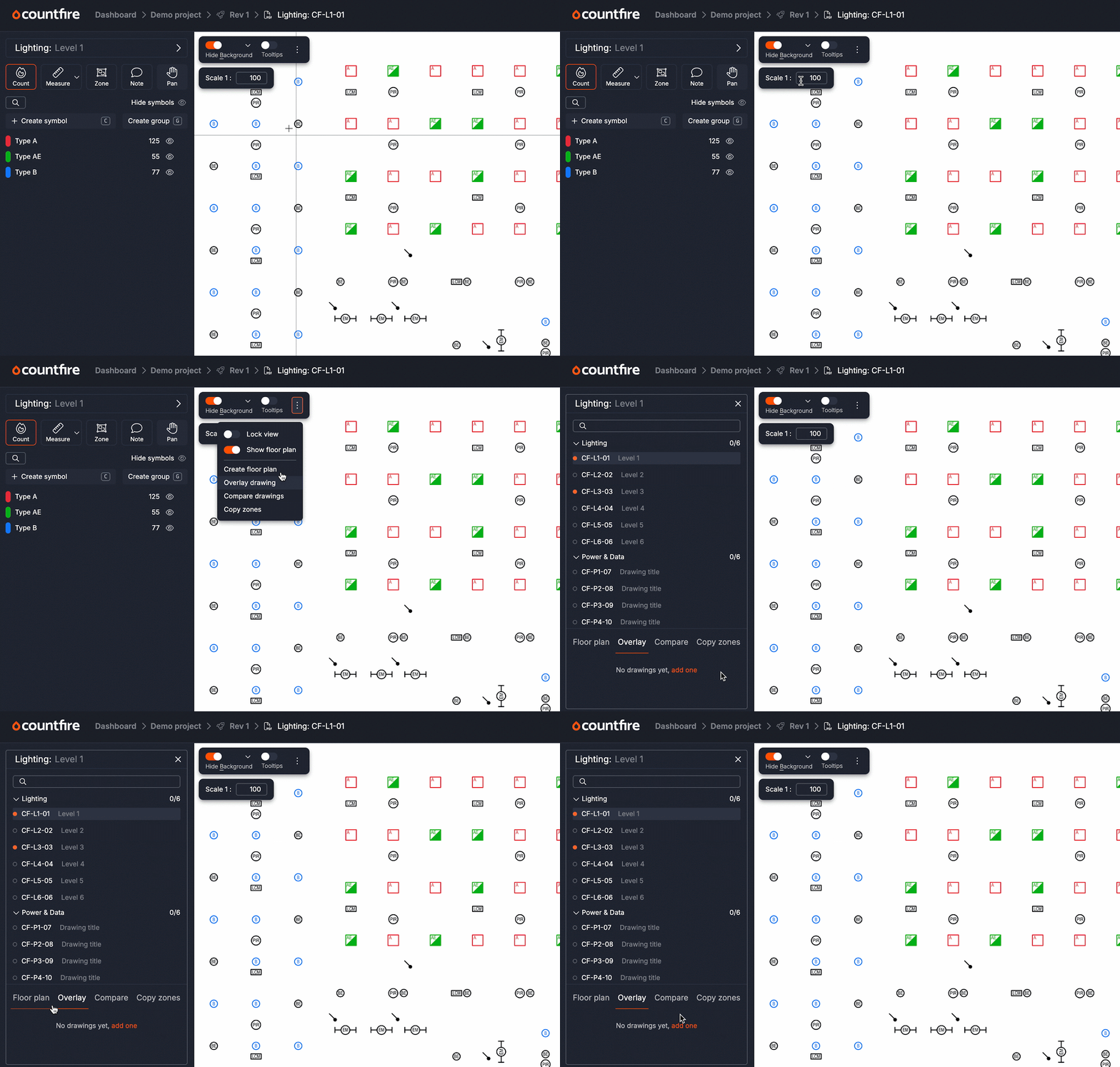
Global toolbar and scale box
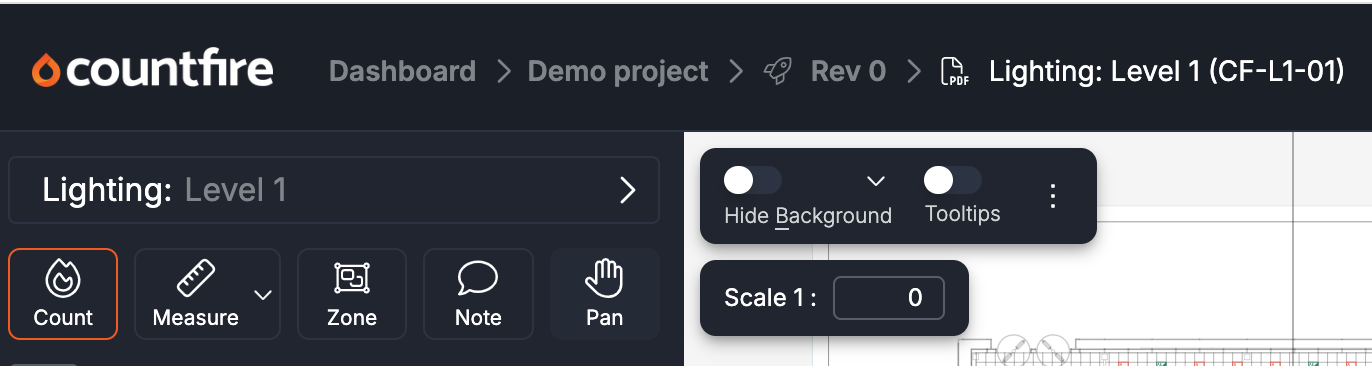
- The new toolbar houses global options to “Hide background” and “Tooltips”
- By clicking the ellipsis [⋮] in the toolbar you can access more options including managing multiple drawings (“Floor plan”, “Overlay” and “Compare”) and “Copy zones”
- The new separate scale box is accessible from “Count” (as well as “Measure”) to use for accurate coverage radius
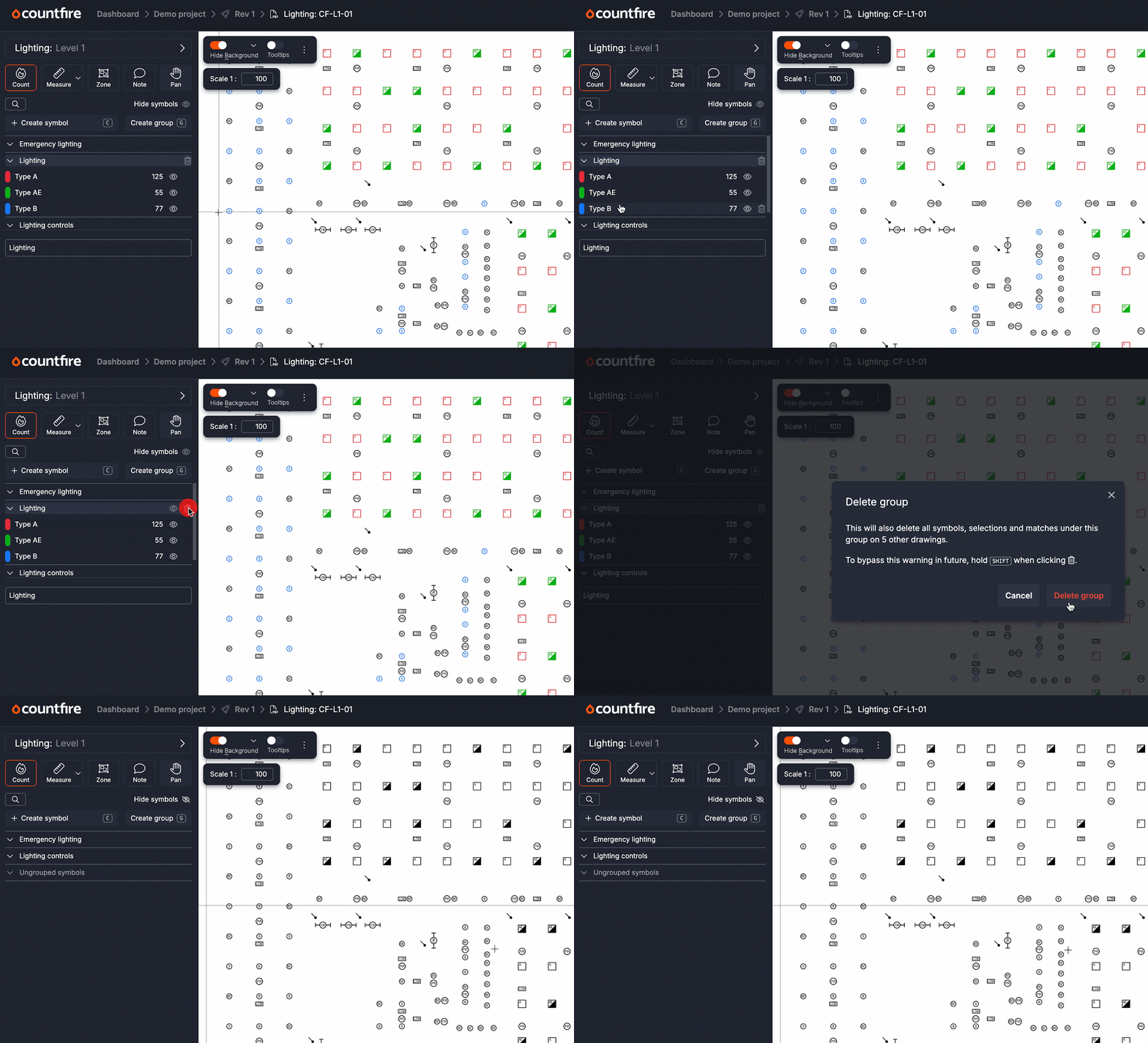
Deleting groups
- It is now possible to delete a whole group without having to manually remove all the headings first
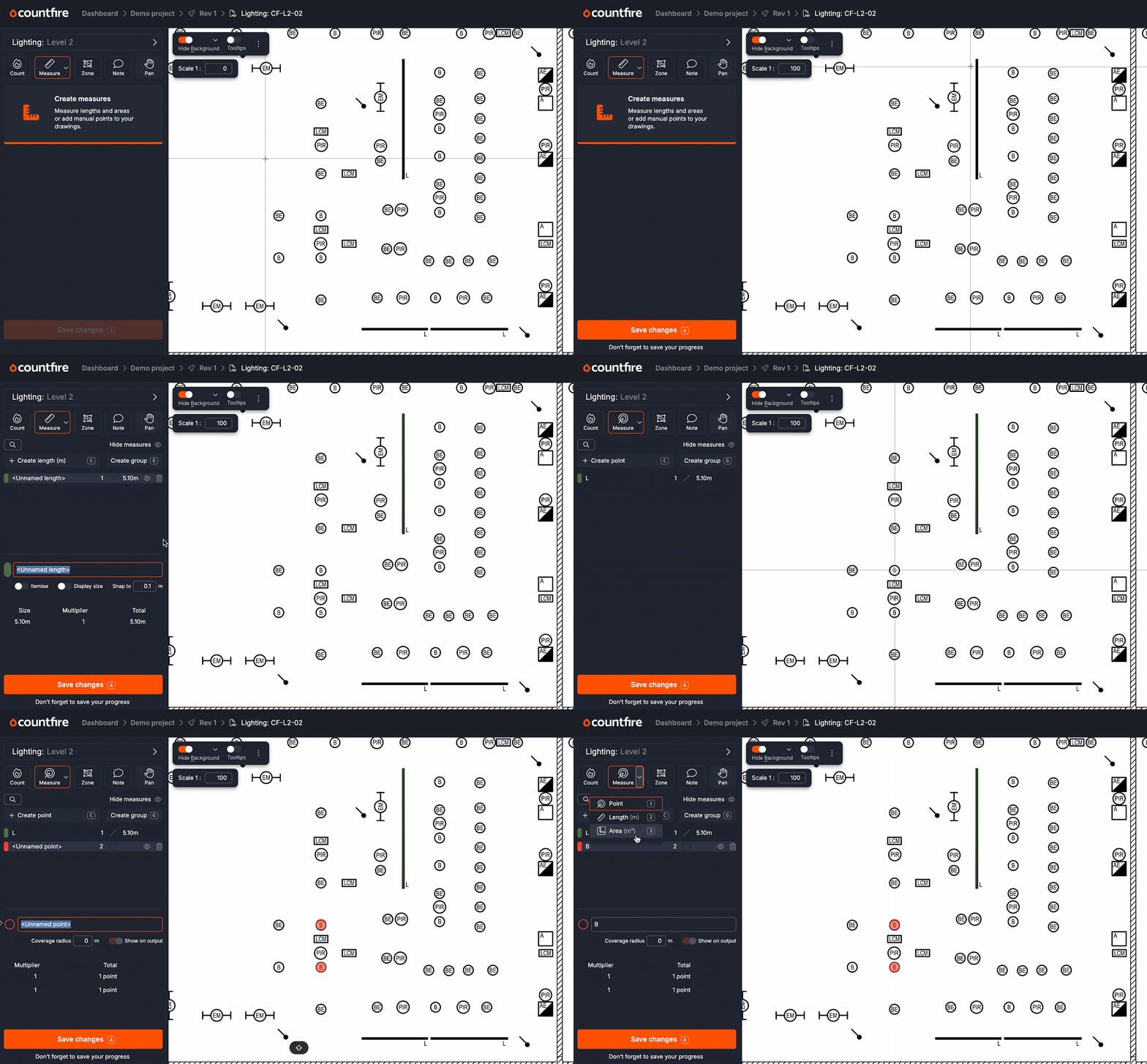
“Measure” tool changes
- Select the measure type from the dropdown before creating the measure (rather than creating and then changing the type)
- The “Measure” icon changes to show if you are creating a length, point or area
Discipline and drawing titles
- If a drawing title has been added it will show in the breadcrumb and in the drawing dropdown so it’s clear what you are working on
- The discipline name is now also shown in the breadcrumb too
New shortcuts
Switch to a different tool:
- <Space + 1> = count
- <Space + 2> = measure
- <Space + 3> = zone
- <Space + 4> = note
Open the drawing chooser:
- <Space + D>
Select the measure type to create when in “Measure”:
- <1> = length
- <2> = point
- <3> = area
Deselect a heading (to use full height of sidebar for symbols list):
- <Esc>
Cycle through drawing status (previously <Space>):
- <D>
Full list of keyboard shortcuts
Here to help
Step by step guides on completing your takeoff are available in the help centre. Or, if you would prefer one of our Product Specialists to show you around, book a 15-min demo with the support team.
Related articles

Celebrating 10 years of Countfire
This November marks the 10 year anniversary of Countfire. In this blog, we reflect on Countfire’s history, how we’ve helped estimators worldwide, and what’s in store for the future. But most of all, we would like to extend our gratitude to our customers who have made this all possible.
Read article
Countfire announces the Electrical Industries Charity as its charity partner
Countfire has named the Electrical Industries Charity (EIC) as its charity partner. Here's why we chose the EIC and what we'll be doing to support them.
Read article
Countfire joins TAG Software Group
We have some exciting news: Countfire has been acquired by TAG Software Group, a subsidiary of Valsoft Corporation.
Read article